

Computing code coverage of your tests
Hardhat 3 has built-in support for code coverage, making it easy to see which parts of your contracts are tested. To use it, run
npx hardhat test --coveragepnpm hardhat test --coverageyarn hardhat test --coverageThis will show you the combined coverage of all your tests. A Markdown report is printed to the terminal, while LCOV and HTML reports are generated in the coverage folder.
You can also use the --coverage flag with individual tests or test subtasks. For example, this shows the coverage of a single Solidity test:
npx hardhat test solidity contracts/Counter.t.sol --coveragepnpm hardhat test solidity contracts/Counter.t.sol --coverageyarn hardhat test solidity contracts/Counter.t.sol --coverageHow code coverage works
Section titled “How code coverage works”Hardhat instruments your Solidity smart contracts by adding markers that it detects at runtime and uses to compute code coverage for your test runs.
This approach has several benefits:
- Your code coverage won’t change with different solc versions
- It works with optimized code
However, this comes with some side effects:
- The bytecode of your contracts running in coverage mode is different and larger
- The gas costs of your contracts when running in coverage mode are higher
To keep this larger bytecode and higher gas usage from tripping size and gas limits, --coverage adjusts some defaults. In every case an explicit value in your config is respected — the override only applies when you haven’t set the option yourself:
- The
allowUnlimitedContractSizesetting ofedr-simulatednetworks defaults totrue. - The
blockGasLimitandtransactionGasCapsettings ofedr-simulatednetworks and Solidity tests default to disabled.
HTML report generation
Section titled “HTML report generation”An HTML report is generated in the coverage/html/index.html file. You can open it in your browser to see the coverage results of all your contracts.
The code coverage report has an index with all your files, which looks like this:
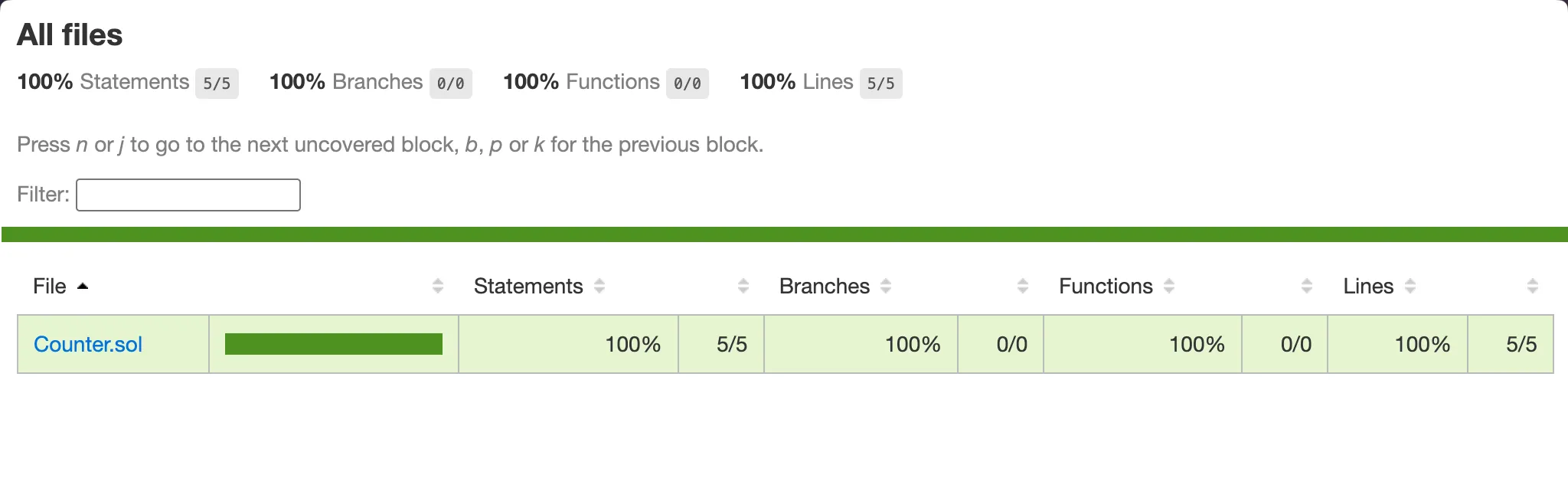
Clicking on one of the files will open a page like this, displaying its code coverage results:

lcov file generation
Section titled “lcov file generation”The lcov format is shared among many programming languages to report code coverage results.
When you run Hardhat with --coverage, an lcov file with the results is stored in coverage/lcov.info.
Displaying the lcov results in Visual Studio Code
Section titled “Displaying the lcov results in Visual Studio Code”You can use the Coverage Gutters Visual Studio Code extension to see the results of your code coverage within your contract files.
Install the extension and run the command “Coverage Gutters: Watch” (coverage-gutters.watchCoverageAndVisibleEditors).
Whenever you open a contract file after having run your tests with --coverage, you’ll see the results right next to the line numbers.